


Customizing the Header
So your name’s in the website header but you’ll want to make it look just so.
Click on Header.
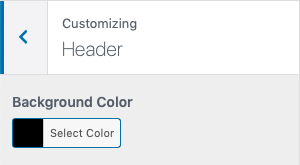
The first option is to change the Background Color. Click Select Color and you’ll see this:
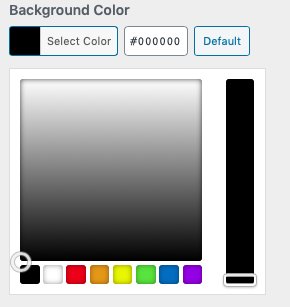
This will give you the opportunity to change the background color to any color under the sun. Even brown!
As you choose different colors you’ll see the color of the header change to match. When you’re happy with the shade click on Select Color once more to confirm.
Font-tastic
The next section is the Logo Font. If you click on the dropdown you’ll have the choice between a variety of fonts.
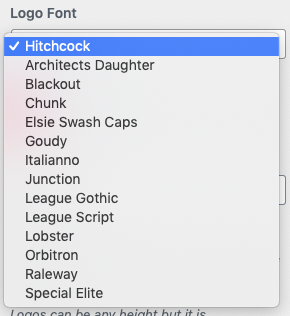
In all likelihood the names of the fonts will mean nothing to you. We noticed that in a lot of themes the list of fonts is endless and as a result becomes meaningless. We’ve chosen a selection of fonts to match any genre from the Typewriter-style of ‘Special Elite’ to the chunky ‘Chunk’ and the futuristic ‘Orbitron’.
We’ve tried to choose fonts that aren’t used elsewhere to help you stand out. Hope you like them!
Once you’re happy with your selection you’ll notice the next option is Logo Color. Once again you can press Select Color and select any color you wish (yes… even brown).
Your name should be the correct font and color now but it may be the wrong size. The Logo Size dropdown is our next stop. Click on it and you’ll have several options:
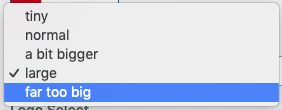
Depending on which font you have chosen ‘far too big’ might be just the right size.
But… I have a logo!?
No problem – if you have branding as an author or you just want to upload your own image instead of our fonts, we’ve got you covered.
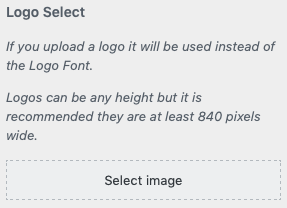
As the image says above, if you upload a logo into the Logo Select, it will be used instead of the Logo Font.
As with all the other image uploads click Select Image where you’ll be able to either select something you’ve uploaded previously or upload from your computer.
What’s on the Menu?
Now that the logo is taken care of, you’ll want to match up your menu. The menu can have a different font and color if you want.
The next dropdown in this panel will give you the chance to change that:
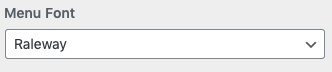
Click on the dropdown and you’ll be greeted with the same font list at above. Select a font and the preview will update to show you your choice.
If you can’t see the menu or it’s the wrong color, look to the next option:
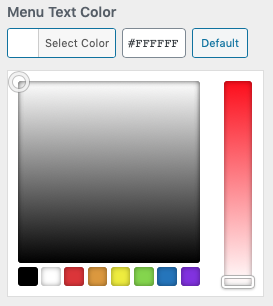
Usually if you can’t see the menu (assuming you’ve created a menu) the reason is because the color of the menu is the same as the background. Regardless, if you click Select Colour you’ll be able to choose a more appropriate color.
If you need to change the size of the menu you can do this by clicking the next dropdown:
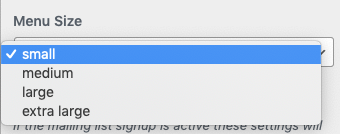
Select the size that best suits. Once you’ve clicked on it, the preview on the right will update.
Popup Bar Style
If you chose to set up a Mailing List Popup when you set up the homepage then there will be a bar above the header which we’ve called the Popup Bar. You have two options to style this:
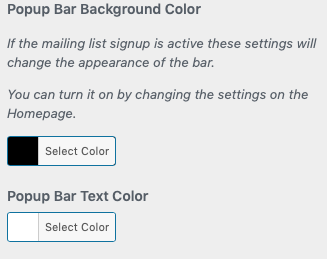
As with all the other color options, use the color picker to choose the color you prefer and the choice will be displayed in the preview.
Moving swiftly on let’s look at the general settings.