


Adding Your First Book
Any book you add will need to be added to the Books category. Right now you won’t have that set up so from the left hand menu, click on Posts then Categories.
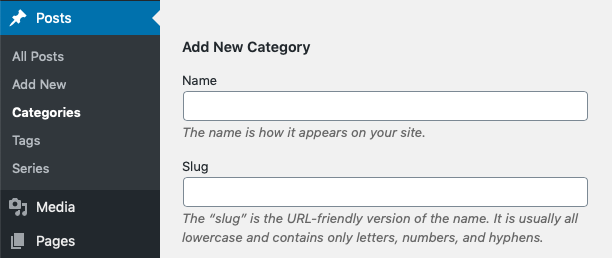
In the Name box type Books – you can ignore the Slug box and press Add New Category. Don’t worry, you don’t need to do this every time you add a new book, just this once.
Adding an Actual Book
Click on Posts then Add New when the page loads you’ll see this:
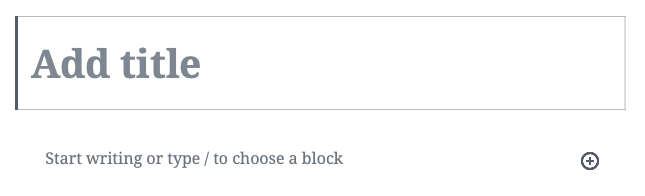
In the Add title box, do as it asks and enter the title of your book. You can ignore the instructions to starting writing as we don’t use that on a book post.
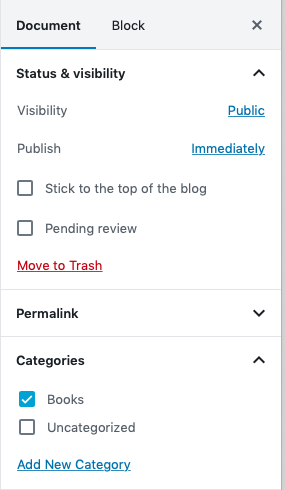
In the right hand column make sure you have selected Document then click on Categories – a new panel will open and you should see Books. Click the box next to it to select it. When you do, a set of boxes will appear on the screen but before we move on to them we should talk series.
Is your book part of a series?
If not, skip to the next section but if it is there’s some good news. Chapter One automatically takes care of organising and labelling books within different series.
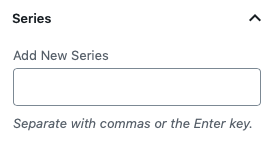
Type the name of the Series in the box and press Enter. That’s all you need to do. The next time you add a book to the series you just need to start typing its name and it will be recognised and show you the name for you to click on.
Adding the cover
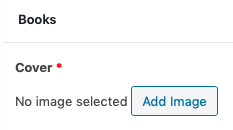
Scroll down the page a little and click on Add Image then Select Files to browse your computer to find the cover. We recommend uploading as a JPG and over 750 pixels wide to get the best effect.
Once uploaded press Select in the bottom right corner of the screen. A small thumbnail of the cover you’ve uploaded will appear on the screen.
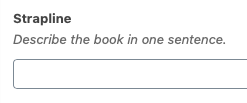
Next type the Strapline of the book. This isn’t used on the book page itself but on any page that lists your book so keeping it as short as possible will keep your site looking great. There’ll be room for more expansive back cover copy on the book page itself further down the page.
Retailers
There are many, many ebook retailers and you can create links to whichever you need. The buttons that link to these retailers will appear in the banner on the book page as well as under the Extract

Click on Add Retailer and a row will appear with two boxes. Put the name of the retailer in the first box (i.e. Amazon UK, Amazon US, Kobo, Apple, etc.) in the second box taste a link to your book page on the corresponding site.
To add another retailer simply press Add Retailer again then enter the next retailer’s name and the link to your next book page. Repeat for as many as you want to add.
If you want to change the order the retailers appear on you book page you can drag and drop the rows by clicking the number at the left hand of the row. Keeping the button held, drag the row up or down then release the button and the sort order will change.
Short Description (or back cover copy)
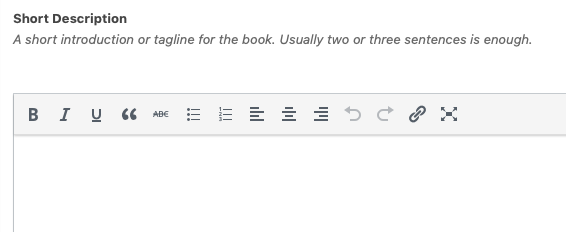
This will appear at the top of the page alongside the book cover and you should put the back cover copy in here. Usually this would be less than three paragraphs.
Book Reviews
Social proof is a great way to convince potential readers that your book is well-written, in the genre the read and that other people like it too. To add some reviews click the Add Review button in the next panel.

When you click the button you’ll see this:
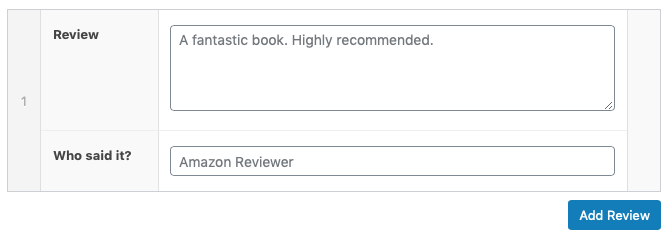
There’s no need to put in the quotation marks around the review, the theme does that for you. Pick the best sentence or two from a handful of reviews then paste the Review in the top box and Who said it in the bottom box. If you want to add more, just press Add Review again for a new box to fill in.
Book Excerpt
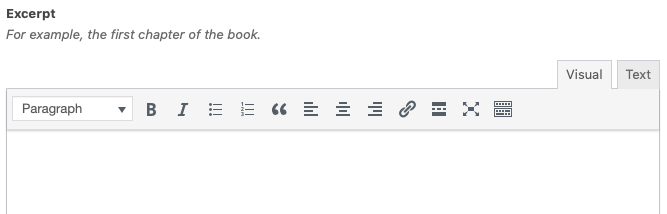
The last option for the book page is for you to add an excerpt from your book. Amazon would usually preview a percentage of your book to potential readers and we’d recommend copying and pasting the first chapter of your book into this text editor.
That’s it for adding your book!
Press the blue Publish button near the top right of the screen (it might be the Update button if you’ve saved this page before). The book will then be published to the site.
If you want to add another book, just scroll to the top of this page and repeat the process. If not it’s time to move on.